This year Linux is celebrating it's 20th year of existence and the Linux foundation has prepared a huge infographic that lists all its memorable moments.
Thursday, April 7, 2011

Saturday, August 7, 2010
How The Internet Works
Have you ever wondered how the internet works. Well here's a sneak preview into it.

Wednesday, July 21, 2010
Indian Rupee Symbol Font | Free Download
The Indian government finally selected the rupee symbol. With this India joins the select group of countries that have a symbol to denote their currency. The other countries are USA, United Kingdom, European Union, Japan. 
Download Font with Indian Rupee Symbol
To mark the occasion Foradian Technologies has brought out a special font with the rupee symbol.
It can be downloaded at Rupee Font Version 2
Thursday, July 1, 2010
How Google Search And Adwords Work
A large number of you must be wondering how Google displays those results and the basis of ordering them. Also you may be keen on knowing how the advertisements are integrated in the search results.
The graphic below explains it all. It shows you the working of Google search as well as Adwords . You can easily see for your self how difficult as well as complex an SEO campaign can be. A lot of research has to go into a successful campaign. But before that years of hard work in getting that knowledge.
For a full size view please click on the graphic.
The graphic below explains it all. It shows you the working of Google search as well as Adwords . You can easily see for your self how difficult as well as complex an SEO campaign can be. A lot of research has to go into a successful campaign. But before that years of hard work in getting that knowledge.
For a full size view please click on the graphic.

Tuesday, March 30, 2010
There Is no Available Connection Type | Nokia Phone Error
When the connectivity part of the NOKIA phone software is corrupted it blurts out a warning "There Is no Available Connection Type" although you may be having several valid connectivity options.
Solution To The Problem
The solution basically involves uninstalling the Nokia PC Suite Connectivity Solution as shown in the figure below.
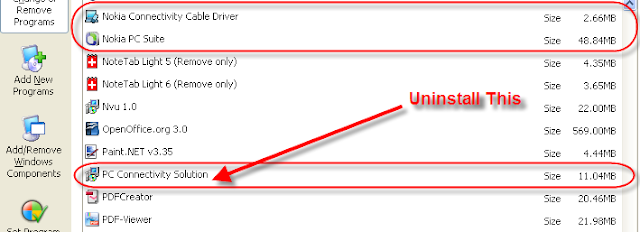
In order to achieve this we have to follow the follow steps:
1.Go to Start > Control Panel and then Add or Remove Programs.
2.Select PC Suite Connectivity Solution and uninstall it.
3.It is better to remove Nokia PC suite as well as the cable drivers also
4. Restart the computer
5. Install Nokia PC suite again
Monday, February 8, 2010
Choose Strong Passwords and Improve Security
Well we all use passwords online for our various accounts - Be it email, shopping or banking. But having a strong password will make the difference between a secured
identity and one which can be easily cracked.
For example a password of 4 characters consisting of all Characters lower and upper case can be cracked in just 1.36 minutes by a mainstream desktop PC.
whereas a password of 8 characters consisting of all Characters will take average computer 2.10 centuries to crack assuming that you are using a random combination of upper and lower case characters and not any dictionary word.
The best password will be a combination of lower and upper case characters as well as special characters like _ (underscore) and - (dash).
More details on the relative strength of passwords is given in How Weak Passwords can be Hacked
identity and one which can be easily cracked.
For example a password of 4 characters consisting of all Characters lower and upper case can be cracked in just 1.36 minutes by a mainstream desktop PC.
whereas a password of 8 characters consisting of all Characters will take average computer 2.10 centuries to crack assuming that you are using a random combination of upper and lower case characters and not any dictionary word.
The best password will be a combination of lower and upper case characters as well as special characters like _ (underscore) and - (dash).
More details on the relative strength of passwords is given in How Weak Passwords can be Hacked
Using Access parameter queries in Word 2003 Mail Merge
You must have notices that by default you cannot select parameter queries as as a data source in Word 2003. This is because the default settings have been changed in Word 2003. The solution to this is to change the default setting under Tools > Options > General in Word 2003.
What is a Parameter Query?
A parameter query is one in which the value of one of the fields in the query is entered at run time in order to filter the data rows returned. i.e. If in a company there are several departments and we create a query of the employee details, we can filter the query by the department of the employee. So, here the department becomes the parameter. If we wish to send a mailer to all the employees of the marketing department, we enter marketing when access displays the prompt to enter department at the time of opening the mail merge document.
Solution To The Word 2003 Mail Merge Parameter Query Problem
Create a mail merge document as usual. We are assuming that we will be using the open document as the mail merge document.
First we have to change the settings. Under Word 2003 Menus, Go to Tools > Options > General
Here under the general tab, click the check box Confirm conversion at Open as shown in the screenshot below.

Click OK and exit the tools menu.
Next click open data source on the mail merge menu. Browse to the required database and select it. When the confirm data source dialog box appears, select MS Access Databases via DDE (*.mdb;*.mde) and click OK. ( See the Screenshot below)

The list of tables as well as queries in the selected database will then be displayed to you. Here select the required parameter query as your data source.
Full in depth coverage of the nature of this problem including how to reproduce it as well as the solution is given in Word 2003 Mail Merge stops responding with Word was unable to open the data source
Related Access Tutorial - Refreshing Linked Tables
In case you are using Access over the network and have changed the location of the backend database, you will also have to refresh the linked tables. Details of this procedure are given in Refreshing Linked tables in Access
Wednesday, November 25, 2009
Search Engine Market Share for October 2009
The Comscore search engine market share figures for the US search market in October have been released by the online tracking firm ComScore.
According to the figures released, Bing's share of the lucrative United State's search and advertising market increased by 0.5 percent in October to 9.9 percent. Google's share stood at 65.4 percent. Yahoo! share declined by 0.8 percent in October to reach 18.0 percent.
Ask.com remained unchanged at 3.9 percent while AOL.com, which uses Google's search index, lost 0.1 percent to stand at 2.9 percent.
Thus Google total share stood at 68.3% while the combined market share of Yahoo! and Bing stood at 27.9% in the U.S. market.
According to the figures released, Bing's share of the lucrative United State's search and advertising market increased by 0.5 percent in October to 9.9 percent. Google's share stood at 65.4 percent. Yahoo! share declined by 0.8 percent in October to reach 18.0 percent.
Ask.com remained unchanged at 3.9 percent while AOL.com, which uses Google's search index, lost 0.1 percent to stand at 2.9 percent.
Thus Google total share stood at 68.3% while the combined market share of Yahoo! and Bing stood at 27.9% in the U.S. market.
Wednesday, November 11, 2009
Google's New Search Engine To Be Rolled Out
Google has readied its new search Engine for a roll out any time now. The testing ended yesterday 10th Nov 2009. Initially the new Google Search engine will be used at a single data centre. The test site of Google new search engine Google Caffeine displays this message.


Top Ranked Websites Of Goa
This is a study of top ranked websites of firms based in Goa or about Goa. The study was done quite some time time back, in fact at the beginning of July 2009. Data is as per Alexa rankings
1) goa-travel.com
A travel related site. In fact the top 3 sites are travel related.
2) gogoa.com
3) goahub.com
4) goaholidayhomes.com
5) goacyberworks.com
This is the site of Goa's top ranked web design and Search Engine Optimization Firm based in Panjim.
6) goa-travel-tourism.com
7)itsaboutgoa.com
8)goawebsolutions.com
9)goaresults.nic.in
You can get the results of all public exams held in Goa
10) igoa.in
11) goatrip.com
12) goablog.org
13) goa-tourism.com
14) goa2u.com
15) unigoa.ac.in
The website of Goa University it tops among the educational institutions.
16) hotelsgoaindia.com
17) goa.bz
18) bits-goa.ac.in
Website of BITS , a premier engineering teaching institution located at Vasco
19)goaindiatourism.org
20) infosolutionsgoa.com
This is the website of Goa's leading freelance web designer , developer and search engine optimization specialist based in Siolim.
21) goaappartments.com
22) goatourism.org
Website of the tourism department of Goa government
23) goa-hotels.co.in
24) goashipyard.co.in
This the website of one of India's biggest Shipyards that also caters to building ships for the Indian Navy
25) cidadedegoa.com
Website of Goa's most well known 5-Star hotel.
 26)goatechno.blogspot.com
27) clickgoa.com
28) amchogoa.com
29) ihmgoa.gov.in
30)goanwap.com
OTHER IMPORTANT SITES (NOT IN ANY PARTICULAR ORDER)
1) goagovt.nic.in
Goa governments official website
2) goacom.com
website caters to Goans all over the world. The web versions of Goa's local English dailies are available here
3) holidayinngoa.com
4) goa-holidays-india.com
5) goanheritage.com
5) prizes4goa.com
6) goatravelguide.com
7) goa-hotels-resorts.com
8) goaayurveda.com
9) buygoaproperty.com
10) hotpropertiesgoa.com
1) goa-travel.com
A travel related site. In fact the top 3 sites are travel related.
2) gogoa.com
3) goahub.com
4) goaholidayhomes.com
5) goacyberworks.com
This is the site of Goa's top ranked web design and Search Engine Optimization Firm based in Panjim.
6) goa-travel-tourism.com
7)itsaboutgoa.com
8)goawebsolutions.com
9)goaresults.nic.in
You can get the results of all public exams held in Goa
10) igoa.in
11) goatrip.com
12) goablog.org
13) goa-tourism.com
14) goa2u.com
15) unigoa.ac.in
The website of Goa University it tops among the educational institutions.
16) hotelsgoaindia.com
17) goa.bz
18) bits-goa.ac.in
Website of BITS , a premier engineering teaching institution located at Vasco
19)goaindiatourism.org
20) infosolutionsgoa.com
This is the website of Goa's leading freelance web designer , developer and search engine optimization specialist based in Siolim.
21) goaappartments.com
22) goatourism.org
Website of the tourism department of Goa government
23) goa-hotels.co.in
24) goashipyard.co.in
This the website of one of India's biggest Shipyards that also caters to building ships for the Indian Navy
25) cidadedegoa.com
Website of Goa's most well known 5-Star hotel.
 26)goatechno.blogspot.com
27) clickgoa.com
28) amchogoa.com
29) ihmgoa.gov.in
30)goanwap.com
OTHER IMPORTANT SITES (NOT IN ANY PARTICULAR ORDER)
1) goagovt.nic.in
Goa governments official website
2) goacom.com
website caters to Goans all over the world. The web versions of Goa's local English dailies are available here
3) holidayinngoa.com
4) goa-holidays-india.com
5) goanheritage.com
5) prizes4goa.com
6) goatravelguide.com
7) goa-hotels-resorts.com
8) goaayurveda.com
9) buygoaproperty.com
10) hotpropertiesgoa.com
Wednesday, June 17, 2009
Online Examination System Review | Videos
Infosolutions Goa based in Goa India has come out with an affordable examination system with lots of features targeted at those looking out for a low cost way of conducting examinations online or preparing their students for all competitive exams. The version shown is of 50 Questions per exam paper but the website states that the number of questions can be customized as per your liking. For further details You can refer to
Affordable Online Examination Software
Videos have been posted at you tube and fully illustrate the same. There are 4 videos in all.
Affordable Online Examination System - Part I
Illustrates some of the administrative features of the affordable examination system.
Affordable Online Examination System - Part II
Illustrates some of the administrative features of the affordable examination system.
Student Details Management in Affordable Online Examination
Ways to enter, edit and manage Student Details Management in Affordable Online Examination System is demonstrated. The process of authorising students to answer exams is also shown.
Answering Exams in Affordable Online Examination
This video shows us the full process of the student logging in and answering the examination.
Affordable Online Examination Software
Videos have been posted at you tube and fully illustrate the same. There are 4 videos in all.
Affordable Online Examination System - Part I
Illustrates some of the administrative features of the affordable examination system.
Affordable Online Examination System - Part II
Illustrates some of the administrative features of the affordable examination system.
Student Details Management in Affordable Online Examination
Ways to enter, edit and manage Student Details Management in Affordable Online Examination System is demonstrated. The process of authorising students to answer exams is also shown.
Answering Exams in Affordable Online Examination
This video shows us the full process of the student logging in and answering the examination.
Saturday, March 28, 2009
Information Technology Resources For Schools
Information Technology Resources For Schools
Information and communication technologies have the potential to improve the quality of education. However, educational institutions are often faced with financial constraints. The high costs of these technologies can also prove to be a major obstacle to providing these facilities in educational institutions. I will briefly describe how Schools can take advantage of Information technologies effectively and at low costs by the use of Open Source software as well as freely available resources on the internet. I will briefly give a small overview of some of the resources that schools will find extremely useful.ITALC:
ITALC stands for Intelligent Teaching And Learning with Computers. iTALC is an extremely useful and powerful tool for teachers. The teacher can view each students desktop and monitor their activities. With the demo option facility the teachers desktop can be shown to all the students at the same time. Such a system can easily be implemented in a computer lab of a school in which all the PCs are networked.
Celestia:

This program is highly recommended for use in high school presentations, which can be set up to run through a pre-programmed sequence.
Celestia is a simulation of the known universe, based on current astronomical information. It includes beautifully rendered planets, moons, and some smaller orbital bodies such as International Space Station. Celestia is not limited to our solar system; you can visit other stars, or even travel outside the galaxy, and you will find models of extra-solar planets in orbit around remote stars. You have complete control over time and space, so you can view the stars from your chosen location and epoch. Celestia comes with a large catalog of stars, planets, moons, asteroids, comets, and spacecraft.
Besides Celestia there is also another similar software Stellarium which renders realistic skies in real time. With Stellarium, you really see what you can see with your eyes, binoculars or a small telescope.
Google Earth:
If you want to see an aerial view of the earth , this software is just right for you. It provides you with detailed high resolution satellite images of the earth. There is a facility for zooming into a particular place and you can get a view in which the streets as well as the traffic which is clearly visible. Google earth can be downloaded from Google Earth DownloadA software similar to Google Earth is NASA World Wind .World Wind lets you zoom from satellite altitude into any place on Earth. World Wind lets you experience Earth terrain in visually rich 3D, just as if you were really there. The latest version of World Wind makes it possible for us to get 3 dimensional views of Moon, Mars, Jupiter and Venus also besides Earth. Worldwind can be got from NASA Worldwind Download
Wikipedia:
Wikipedia is the worlds free encyclopedia and covers almost all the topics under the sun. It is available at Wikipedia. It offers a wealth of information for students and teachers alike. There are even a lot of pages on Goa. You can get to know quite a lot of information that includes History, Geography, climate, culture right down to the recently started FM radio stations and their frequencies.How Stuff Works:
This site is dedicated to explaining how things work in a easy to understand manner with illustrations, animations, videos and descriptions. It covers all possible fields and categories from Ultrasound to Movie projectors, from Automobiles to Electronics. School students will find extremely useful information in the Geography, History as well as the Science section. You can check it out at How Stuff Works
Project Gutenberg
Project Gutenberg has a huge collection of e-books which can be freely downloadable. The books cover a wide variety of topics from classics and children’s books to fiction and poetry. Even books on religion as well as Gardening and Home Science are available here. Students can make good use of almost all the classics of English literature available here. The site is Project Gutenberg.Office Productivity Applications:
OpenOffice.orgOpenOffice is a full-featured office productivity suite, including a word processor, spreadsheet and presentation program, all in tightly integrated modules. Notable features in this version are native PDF and Flash export at a click and a macro recorder for increased productivity. You can create mail-merged documents from your Outlook or Mozilla address book, or other data sources.
GIMP
Gimp is a very flexible application that can be used for photo retouching, image composition and image authoring. It supports a variety of file formats, languages and operating systems.
Inkscape
Inkscape is an open source vector drawing tool that uses the W3C standard scalable vector graphics format (SVG). Some supported SVG features include basic shapes, paths, text, markers, clones, alpha blending, transforms, gradients, and grouping.
Scribus
Scribus is an Open Source full featured Desktop Publishing application and brings professional page layout to desktops. Scribus has a modern and user friendly interface and supports professional publishing features, such as CMYK color, separations, ICC color management and versatile PDF creation.
Among other software in this category are 1) Dia, which is diagram software, it allows you to draws all sorts of technical drawings including flowcharts and circuit diagrams. 2)Tuxpaint which is a drawing program for children ages 3 to 12
Course Management and Online Learning
Moodle:There are several online learning software such as Moodle which are suitable for courses conducted entirely online as well as for supplementing classroom Learning. Moodle has numerous features for site management, user management and course management. It has modules for assignment, quiz, discussion forum and chat. Instructors can put up assignments with due dates and maximum grades. There is a Flexible array of course activities available via various modules—Forums, Journals, Quizzes, Resources, Choices, Surveys, Assignments, Chats, Workshops.
General Purpose Content Management Systems - Joomla and Drupal:
Besides this there are also general purpose content management systems like Joomla and Drupal available where the schools can place their entire courseware and the students can access it whenever they want. A search facility is also available in such systems. Joomla is highly recommended due to its ease of use. Anyone with basic computer knowledge can easily maintain the site once it is setup. Joomla is available from Joomla Content Management SystemThe above are just a small fraction of the resources available which are just waiting for the users to discover and use them. All you need is a time to search for such resources and then try and evaluate them to see if they are suitable for your use.
Monday, January 12, 2009
Creating MP3 Wma and OGG - Tutorial on Compressed Music
Details of Mp3, Wma and Ogg Files and a brief tutorial on how to create them.
Recently I overheard one friend say to the other “My CD Player can play 12 and a half hours of music from a single CD.” “Well you must be joking” said the other, and continued saying “That's impossible as a CD can hold 74 minutes of music only”. Their conversation went on, each trying to disprove the other. Unfortunately I didn't manage to hear the end of it.
Well Folks, what I want to say is that you can compress 12 and a half hours of music or even more depending on the quality you need , as compared to a measly 74 minutes of audio in a normal audio CD. You can also compress music without any loss in quality and in a manner that it can be completely reversed, however the file sizes will be a little large as compared to the other formats.
We will take a look at the popular formats used for compressing music, how to compress music ourselves and how to play the compressed music. The information given in this article is for the information of the readers.
According to the current line of thought it is legal to make any compressed music only from CD's that you legally own and that you cannot sell or give away the resulting files. The reader must note that He/She has to observe relevant copyright and other laws.
Although all efforts have been made to provide accurate and relevant information, any user of the information contained herein must note that they are making use of the information contained here at their own risk.The music formats that I will discuss here are MP3, WMA, Ogg Vorbis, Monkey's Audio.

If you convert the Songs to MP3 by the using these file names, after you have converted several files you will not know which file corresponds to which song. Hence it is preferable to rename according to the name of the song. Firstly enter the name of the album. Next Enter the type of the song by selecting from the provided list. Then select the track, press F2 and enter the name of the song .Repeat the process for all tracks. The names of the songs can also be entered by opening CD player in Windows 95/98 and entering the names of the tracks , artist name, album name etc. in the playlist. If you want to save the track names entered in CDEX in CD player then select the option save to CD player.ini under the CDDB menu.
Settings

 Besides that I suggest that you download the following codecs for dBPowerAMP : dBpowerAMP-codec-ogg (500 KB) , dBpowerAMP-codec-wmav9 (263 KB), dBpowerAMP-codec-MonkeysAudio (392 KB). Besides this you have to download Windows Media Audio 9 System Codecs which are about 3.78 MB in size.
From Start --->Programs ---->dBpowerAMP Music Converter ,select dMC Audio CD input. You will see the tracks listed as before . To rename the tracks follow the same procedure as previously explained . Clicking on the arrow next to Rip throws up the following options:
1)Rip Audio From CD
2)Rip with Options (Right Button Click)
3) Rip To
4)Compressions settings
 Clicking on Rip Audio From CD starts the ripping process for the selected tracks (By default all tracks are selected ) and the audio tracks are ripped to the format and bit rate which is currently selected.
Clicking on Rip with Options(Right Button Click) enables us to select the compression format and/or the compression settings as well as the output directory. The above two options can also be had by clicking on the Rip icon and Right Button Click on the Rip icon respectively.
Clicking on Rip To displays the various compression codecs installed in our computer and we can select the default compression option from here.
Clicking on Compressions settings displays the currently selected compression setting and which can also be changed from here as per our requirement .
Right clicking the Rip icon enables us to set the various options for ripping the audio tracks .
 If we wish to rip to MP3 , we have to select MP3 (lame) as the compression codec,bitrate of 128 ,160, or 192 as per our requirement and the output folder. The channels should be stereo and frequency 44100 Hz .
Clicking on Advanced Options enables us to change between constant and variable bit rate as well as alter the Quality settings.It is recommended that you select Constant Bitrate and High quality.
Clicking on the Options icon on the toolbar enables us to select the CD-ROM drive that you wish to use and also enable slow accurate ripping ( Which is very useful in case your CD has scratches) .
Recently I overheard one friend say to the other “My CD Player can play 12 and a half hours of music from a single CD.” “Well you must be joking” said the other, and continued saying “That's impossible as a CD can hold 74 minutes of music only”. Their conversation went on, each trying to disprove the other. Unfortunately I didn't manage to hear the end of it.
Well Folks, what I want to say is that you can compress 12 and a half hours of music or even more depending on the quality you need , as compared to a measly 74 minutes of audio in a normal audio CD. You can also compress music without any loss in quality and in a manner that it can be completely reversed, however the file sizes will be a little large as compared to the other formats.
We will take a look at the popular formats used for compressing music, how to compress music ourselves and how to play the compressed music. The information given in this article is for the information of the readers.
According to the current line of thought it is legal to make any compressed music only from CD's that you legally own and that you cannot sell or give away the resulting files. The reader must note that He/She has to observe relevant copyright and other laws.
Although all efforts have been made to provide accurate and relevant information, any user of the information contained herein must note that they are making use of the information contained here at their own risk.The music formats that I will discuss here are MP3, WMA, Ogg Vorbis, Monkey's Audio.
MP3
This format is a proprietory format owned by Fraunhofer IIS and Thomson Multimedia. It dates back to 1992 when the Fraunhofer institute in Germany invented a format called as Moving Pictures Expert Group Layer 3 Shortened to MPEG-1 Layer 3 and finally as it gained popularity it got shortened to MP3.This format is the most widely supported format in hardware devices as well as across all Operating Systems.
Ogg Vorbis (www.vorbis.com , www.xiph.org )
Ogg Vorbis is a completely open, patent-free, professional audio encoding and streaming technology with all the benefits of Open Source. The music encoded in this format sounds slightly better than mp3 at the same bit rates. Its Popularity has soared ever since the Fraunhofer institute decided to get tough on the MP3 standards patents and is now charging a fee for use of MP3 technology in decoders also.
Windows Media Audio (www.microsoft.com/windows/windowsmedia/default.asp)
This format is next in popularity to MP3.Windows Media Audio ( WMA) is Microsoft's proprietory standard for Compressed Music. This format is made only for windows users, although recently, a command line media player has been released for linux which supports wma playback.One of the major differences with the other formats is that WMA supports Digital rights Management (DRM) which means that distribution of copyrighted wma's is severely restricted.
Monkey's Audio
Monkeys Audio is a what you would call a loss-less compressor, that is when a monkeys audio file is played the resulting rendition is exactly the same (quality wise) as the original. The process is reversible in the fact that if we reconvert the monkeys audio file to wav the resulting wav file will be exactly the same as the original wav file, unlike Mp3, WMA, Ogg vorbis and other similar compression methods which are lossy compression methods ,( like the .jpg format for digital photos) where sound information is discarded in the name of higher compression rates. The downside to Monkeys approach is that compression ratios will very low as compared to the lossy compression methods.
The table below illustrates the file sizes, compression ratios and compression time for various audio file formats.
| | ||||
| Audio Format | File Extension | Compression Ratio | File size in MB | Encoding Time (minutes: Seconds) |
| MP3 | .mp3 | 11.0 to 1 (9%) | 5.80 | 1:05 |
| Ogg Vorbis | .ogg | 11.5 to 1 (8.7%) | 5.57 | 2:59 |
| Wma | .wma | 0.9 to 1 (9.1%) | 5.85 | 0:36 |
| Monkeys Audio | .ape | 1.7 to 1 (60%) | 38.2 | 2:00 |
NOTE:
(i) The original wav file used for encoding was 63.9 MB having a Playing time of 6:20
(ii) All the compressed files were encoded at a bitrate of 128 Kbps, Except for monkeys audio where normal compression was used.
(iii) During Playback of the ogg file in winamp 2.xx it showed a variation from 116 to 138 kbps. This may sometimes result in a slightly smaller file size than MP3 (As in the present Case)
(iv)The above results will vary with your system configuration, and encoder used. For example the P4 3.06 Ghz is reported to encode a 51 MB Wav file in just 17 seconds.
We will now take a look at the various Encoders which we can use to make compressed music.
Encoding Using CDEX (http://www.cdex.n3.net)
When you put the CD in the drive you will get the list of files displayed. The files have been named by default names such as Track One, Track Two, Etc.

If you convert the Songs to MP3 by the using these file names, after you have converted several files you will not know which file corresponds to which song. Hence it is preferable to rename according to the name of the song. Firstly enter the name of the album. Next Enter the type of the song by selecting from the provided list. Then select the track, press F2 and enter the name of the song .Repeat the process for all tracks. The names of the songs can also be entered by opening CD player in Windows 95/98 and entering the names of the tracks , artist name, album name etc. in the playlist. If you want to save the track names entered in CDEX in CD player then select the option save to CD player.ini under the CDDB menu.
Settings

The Settings are under the Options Menu. The settings we can be select are
(i)Under General Settings where one can specify the type of tag which you want to use namely ID3 v1 or ID3 v2. ID3 v2 tags allow for longer names than ID3 v1.
(ii) Under File Names We can specify the format for the name of the file i.e if we want the track no., artist name etc included in the file name. We can also specify the folder for the Recorded tracks (Tracks which are directly converted to MP3) and the folder for Wav to MP3 Conversion .
(iii)Under CD-ROM Settings we can select the CD-ROM drive to be used if we have more than one CD-ROM drive.
(iv)Under Encoder we can select the format of compressed music by selecting the Encoder that we require . For example For Converting to MP3 we have to select Lame encoder And for Ogg files we select the Ogg vorbis encoder. For the MP3 format we can select between constant bit rate and variable bit rate. However some hardware players will not recognize the variable bit rate format hence it is best to stick to constant bit rate and the bitrate should be maximum of 192Kb for the same reason. The Bitrate required for excellent quality in the MP3 format is 192 kilobits. A balance between good quality and optimum file size is obtained at 128. For the Lame encoder the settings should be
Version : MPEG1 BitRate Minimum 128 kilobits mode Stereo Quality (Normal q = 5) VBR method disabled .
The files produced by compressing to Ogg format are slightly better sounding than those obtained by compressing to MP3 format at the same bitrates.
Converting To MP3
Select the tracks by using the option Select All from the Edit Menu.
Then Go To Convert Menu and select Extract CD tracks to MPEG Files. The conversion process Will start and then the MP3 files Will be written in the default directory. There is another way of starting the conversion process. Simply click on the icon CD to MP3 to the right of the screen and the process will start .
We can also Have a two stage conversion process firstly we can convert the tracks to wav files and then the wav files can be converted to MP3 format. In this two stage process the quality of MP3 files obtained is slightly better than that obtained when we convert directly to MP3 format . However In this two stage process we will have to write the ID3 tags manually.
We can also use CDEX as a player for compressed music by selecting Tools --> Play Files. However I would not recommend you to use CDEX for music playback.
NOTES :
(1) Another conversion software based on CDEX is Neo-Audio.The latest version includes support for monkeys audio and has plugins for Winamp 2.xx.
Conversion using dB Power Amp Music Converter (http://www.dbpoweramp.com/dmc)
Before I describe now to use the dBPowerAMP Music converter I will tell you the files that are to be downloaded. Firstly you have to download dBPowerAMP which is currently in it's 12 version. It is about 1.5 MB in size. Note that the MP3 facility is a time limited demo facility in the free version to to licensing issues.
 Besides that I suggest that you download the following codecs for dBPowerAMP : dBpowerAMP-codec-ogg (500 KB) , dBpowerAMP-codec-wmav9 (263 KB), dBpowerAMP-codec-MonkeysAudio (392 KB). Besides this you have to download Windows Media Audio 9 System Codecs which are about 3.78 MB in size.
From Start --->Programs ---->dBpowerAMP Music Converter ,select dMC Audio CD input. You will see the tracks listed as before . To rename the tracks follow the same procedure as previously explained . Clicking on the arrow next to Rip throws up the following options:
1)Rip Audio From CD
2)Rip with Options (Right Button Click)
3) Rip To
4)Compressions settings
 Clicking on Rip Audio From CD starts the ripping process for the selected tracks (By default all tracks are selected ) and the audio tracks are ripped to the format and bit rate which is currently selected.
Clicking on Rip with Options(Right Button Click) enables us to select the compression format and/or the compression settings as well as the output directory. The above two options can also be had by clicking on the Rip icon and Right Button Click on the Rip icon respectively.
Clicking on Rip To displays the various compression codecs installed in our computer and we can select the default compression option from here.
Clicking on Compressions settings displays the currently selected compression setting and which can also be changed from here as per our requirement .
Right clicking the Rip icon enables us to set the various options for ripping the audio tracks .
 If we wish to rip to MP3 , we have to select MP3 (lame) as the compression codec,bitrate of 128 ,160, or 192 as per our requirement and the output folder. The channels should be stereo and frequency 44100 Hz .
Clicking on Advanced Options enables us to change between constant and variable bit rate as well as alter the Quality settings.It is recommended that you select Constant Bitrate and High quality.
Clicking on the Options icon on the toolbar enables us to select the CD-ROM drive that you wish to use and also enable slow accurate ripping ( Which is very useful in case your CD has scratches) .
Saturday, December 20, 2008
Extracting Audio from a VCD or DVD
This tutorial covers the method of extracting audio from a VCD or a DVD or any video file using freeware tools Virtual Dub and Audacity.
Requirements :
1. GNU/GPL software (Freeware) Virtual Dub and Audacity
2. A PC with 1 GHz and above processor and 1 GB RAM and at least 2GB free space
1. Put the VCD or DVD from which you want to extract the audio in your optical drive.
3. After the file has been fully loaded in virtual dub , navigate to the file menu and select Save Wav . From the window that appears give a suitable name for the file to be saved say myaudio and select the destination folder.
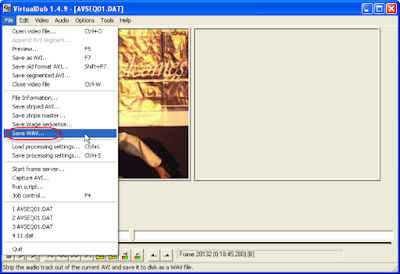
4. After some time depending on the length of the file the audio extraction will be complete.
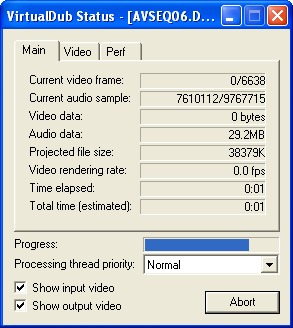
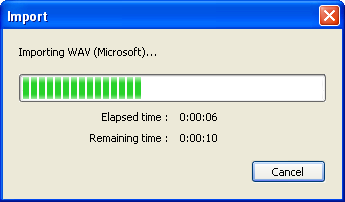
5.Now close virtual dub and open Audacity in case you want only a part of the audio.
From the file menu select open and load the file myaudio.wav.
6. Listen to the audio and then select the start and end points of the portion of the audio that you wish to extract. The start point is selected by clicking on it. Then drag the
mouse till you reach the end point.
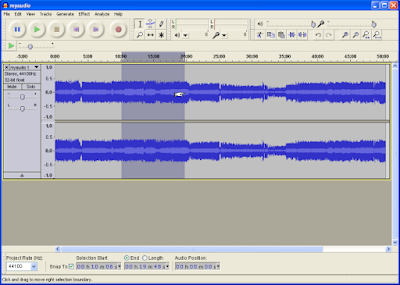
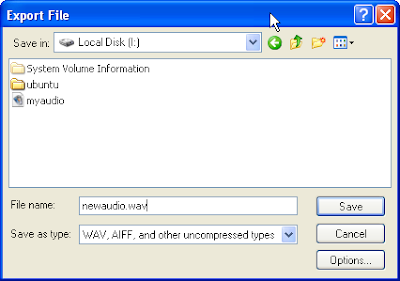
7. From the edit menu select copy. Then select new from the file menu and copy the selection in it. To save your file select Export from your file menu and give a name for your file say newaudio.wav and save it. Advanced features like noise filters are available in audacity in case you wish to clean your audio file.
 8. After you have made all your audio files you can burn a audio CD by selecting
Creating a audio CD option in your CD/DVD burning software like Nero Express and adding the audio wav files so created.
Requirements :
1. GNU/GPL software (Freeware) Virtual Dub and Audacity
2. A PC with 1 GHz and above processor and 1 GB RAM and at least 2GB free space
1. Put the VCD or DVD from which you want to extract the audio in your optical drive.
2. Start virtual dub select open and navigate to the file that you want to extract the audio from. in case of VCD it will be something like AVSEQ01.dat and in case of DVD it will be aaa.vob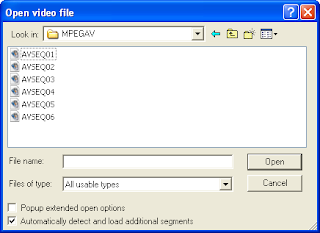

3. After the file has been fully loaded in virtual dub , navigate to the file menu and select Save Wav . From the window that appears give a suitable name for the file to be saved say myaudio and select the destination folder.

4. After some time depending on the length of the file the audio extraction will be complete.


5.Now close virtual dub and open Audacity in case you want only a part of the audio.
From the file menu select open and load the file myaudio.wav.
6. Listen to the audio and then select the start and end points of the portion of the audio that you wish to extract. The start point is selected by clicking on it. Then drag the
mouse till you reach the end point.

7. From the edit menu select copy. Then select new from the file menu and copy the selection in it. To save your file select Export from your file menu and give a name for your file say newaudio.wav and save it. Advanced features like noise filters are available in audacity in case you wish to clean your audio file.
 8. After you have made all your audio files you can burn a audio CD by selecting
Creating a audio CD option in your CD/DVD burning software like Nero Express and adding the audio wav files so created.
Tuesday, December 9, 2008
Welcome To Goa Tech Guide
Welcome To Goa Tech Guide .
This blog will explain to the computer end user how to accomplish tasks that one needs to do to get along with the computer world. Be it Extracting audio from VCD or DVD , installing fonts, setting wallpapers, configuring email clients, composing documents, using page layout DTP software, recovering data from corrupted CDs and several other tasks. Please visit this site from time to time and I hope that you will not be disappointed.
This blog will explain to the computer end user how to accomplish tasks that one needs to do to get along with the computer world. Be it Extracting audio from VCD or DVD , installing fonts, setting wallpapers, configuring email clients, composing documents, using page layout DTP software, recovering data from corrupted CDs and several other tasks. Please visit this site from time to time and I hope that you will not be disappointed.
Subscribe to:
Posts (Atom)